Shadow on Computer Monitor: Causes, Fixes, and When It Means Hardware Failure
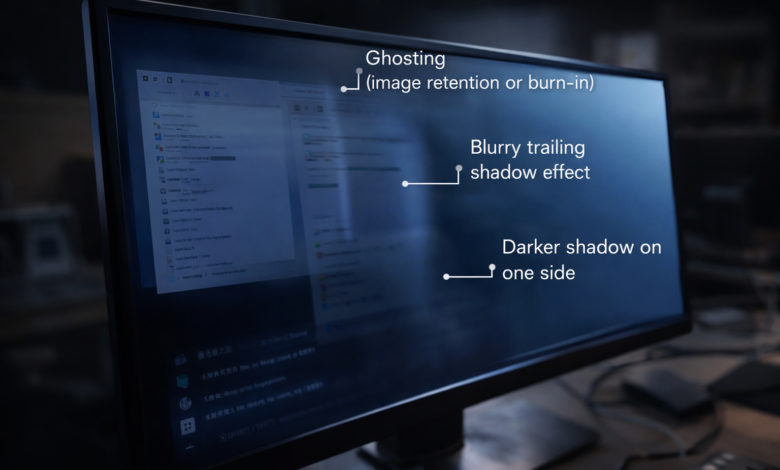
A shadow on a computer monitor can show up in several ways: a faint duplicate image, a dark patch on one side of the screen, a lingering outline after a window moves, or a blurry trail behind fast motion. While users often describe all of these problems as a “shadow,” the real cause can vary widely. In some cases, the issue is caused by simple settings such as refresh rate, overdrive, or cable problems. In others, it may point to image retention, backlight inconsistency, panel damage, or early hardware failure.
This guide explains how to identify the type of shadow you are seeing, what usually causes it, how to fix it step by step, and when repair or replacement is the more realistic option.
What does a shadow on a monitor usually mean?
When people search for a shadow on a computer monitor, they are often describing one of these symptoms:
- a faint image that remains visible after content changes
- a dark area or gray patch on part of the screen
- a “ghost” trail behind moving objects
- uneven brightness that makes one side of the display look dimmer
- a persistent screen mark that does not disappear after restarting
These are not always the same problem. That is why the first step is not to guess, but to identify the symptom correctly.
The most common types of monitor “shadow” issues
1. Ghosting
Ghosting happens when moving objects leave a faint trail behind them. It is most noticeable in games, videos, and fast scrolling. This usually has more to do with response time behavior, overdrive settings, or panel limitations than with permanent damage.
Typical signs:
- the shadow appears mainly during motion
- text or objects look smeared while scrolling
- the problem is less visible on still images
2. Image retention
Image retention is a temporary lingering image that remains faintly visible after something static has been displayed for a while. This can happen on some LCD and OLED displays, although the severity differs by panel type.
Typical signs:
- a faint outline stays visible after a static window disappears
- the effect may fade over time
- it is often more noticeable on solid-color backgrounds
3. Burn-in
Burn-in is more serious than temporary image retention. It refers to a persistent image artifact caused by uneven panel wear. It is more commonly associated with OLED displays, but users sometimes use the term loosely for any persistent shadow.
Typical signs:
- the shape remains visible for a long time
- restarting the display does not solve it
- the same pattern is visible across test screens
4. Backlight or panel uniformity problems
Sometimes what looks like a shadow is actually a hardware issue with brightness uniformity, the backlight, or the panel itself. This can appear as one corner being darker, a cloudy patch, or a permanently dim zone.
Typical signs:
- one side of the screen looks darker than the rest
- the issue is visible even on a blank white or gray background
- it does not depend on motion or app type
5. Cable, GPU, or signal issues
A damaged HDMI or DisplayPort cable, a loose connection, driver instability, or a graphics card problem can also create strange visual artifacts that users describe as screen shadowing.
Typical signs:
- the issue changes when you move the cable
- the shadow appears only on one device or one port
- external monitors behave differently from the laptop screen
How to tell which problem you actually have
Before trying random fixes, look at when the shadow appears.
If the shadow is visible only while things are moving, you are probably dealing with ghosting.
If a faint image remains after static content disappears, it is more likely to be image retention.
If one part of the display always looks darker, even on a blank screen, that points more toward backlight, panel, or uniformity issues.
If the problem changes with ports, cables, or devices, the root cause may be the signal path rather than the panel itself.
That distinction matters, because a setting-related issue can often be improved, while permanent panel wear usually cannot.
How to fix a shadow on a computer monitor
Start with the easiest checks first.
1. Restart both the monitor and the computer
This sounds basic, but it helps rule out temporary rendering glitches, signal negotiation issues, and GPU hiccups.
What to do:
- turn off the monitor completely
- shut down the PC
- unplug the monitor for a minute
- reconnect and restart
If the shadow disappears afterward, the issue may have been temporary rather than physical.
2. Check the cable and connection type
A loose or low-quality cable can cause strange artifacts, especially at high resolutions or refresh rates.
Try this:
- reseat the cable firmly
- switch from HDMI to DisplayPort, or vice versa
- test a different cable
- test another port on the monitor and graphics card
If the issue changes or disappears, the cable or port is a likely factor.
3. Test the monitor with another device
This is one of the fastest ways to isolate the source of the problem.
Connect the monitor to:
- another PC
- a laptop
- a game console if available
If the shadow appears only with one system, the problem may be the graphics driver, GPU, or output settings. If it appears across devices, the monitor itself becomes the main suspect.
4. Reset monitor settings
Many monitors allow aggressive response-time tuning or image enhancement features that can create inverse ghosting, overshoot, or unusual shadows.
Look for settings such as:
- Response Time
- Overdrive
- Motion Blur Reduction
- Dynamic Contrast
- Sharpness enhancements
Reset the monitor to factory defaults, then test again.
5. Adjust refresh rate
A mismatch between monitor capability, cable bandwidth, and system output settings can sometimes create visual problems.
On Windows, check:
- Settings
- System
- Display
- Advanced display
- Refresh rate
Make sure the selected refresh rate matches what the monitor and cable can reliably support.
6. Update or reinstall graphics drivers
Driver issues can create artifacts that resemble panel problems.
Recommended approach:
- update the GPU driver from the graphics vendor
- if the issue started after an update, try a clean reinstall
- if possible, test using integrated graphics versus a dedicated GPU
7. Run full-screen color tests
Use solid white, gray, black, red, green, and blue test screens. This helps reveal whether the problem is:
- temporary image retention
- a dead or damaged panel zone
- uniformity issues
- a persistent burned-in pattern
If the same shadow appears clearly on multiple solid backgrounds, that usually points to the display rather than software.
8. Reduce static content exposure
If you suspect image retention, avoid leaving the same UI elements on screen for long periods.
Helpful habits:
- use a screen timeout
- lower brightness slightly
- enable dark mode if appropriate
- avoid leaving dashboards, taskbars, or static windows on-screen all day
9. Let the screen display changing content for a while
If the issue is temporary image retention rather than burn-in, it may fade after normal varied use. In some cases, displaying moving full-screen content or cycling colors may help reduce the effect.
If the shadow remains unchanged after extended varied use and repeated testing, it is less likely to be temporary.
Shadow vs ghosting vs burn-in: the difference that matters
Many articles treat these terms as interchangeable, but they are not.
Ghosting is usually a motion artifact.
Image retention is usually temporary.
Burn-in is persistent panel wear.
Dark shadowing on one side often points to panel or backlight problems.
Knowing the difference prevents wasted troubleshooting. A user trying to “fix burn-in” by changing a cable is solving the wrong problem. A user replacing a panel for ghosting may also be overreacting to what is really a settings issue.
When the issue is probably hardware failure
The problem is more likely to be hardware-related if:
- the shadow appears on every device you connect
- it stays visible after factory reset
- it shows up on all test backgrounds
- one side of the screen is permanently darker
- the issue gradually gets worse over time
- pressing lightly on the bezel changes the appearance
- the monitor has already taken impact damage or heat stress
At that point, software fixes are unlikely to help much.
Should you repair or replace the monitor?
That depends on the type of display and the severity of the problem.
If the issue is caused by settings, cables, or refresh rate mismatch, replacement is unnecessary.
If the monitor has clear backlight failure, uniformity problems, panel damage, or persistent burn-in, replacement is often more practical than repair, especially for mainstream consumer monitors. Repair may make sense for expensive professional displays, but for older or lower-cost models, labor and parts can easily exceed their value.
As a rule of thumb:
- fix it if the issue is tied to settings, cabling, or drivers
- monitor it if it looks like mild image retention
- replace it if the panel shows persistent physical or wear-related damage
A practical troubleshooting order that saves time
If you want the fastest path to an answer, do this in order:
- Restart the monitor and PC
- Change the cable
- Change the port
- Test another device
- Reset monitor settings
- Check refresh rate and drivers
- Run full-screen color tests
- Compare results across devices and inputs
This sequence helps separate a configuration problem from an actual hardware defect.
Final answer: can a shadow on a monitor be fixed?
Yes, sometimes. If the shadow is caused by ghosting, settings, refresh rate, cable issues, or signal problems, you may be able to improve or fully fix it. If it is caused by persistent burn-in, panel wear, or backlight failure, the problem is usually permanent or only partially manageable.
The key is to diagnose the type of shadow correctly. The word “shadow” is too broad on its own. Once you know whether you are seeing ghosting, image retention, burn-in, or a panel issue, the right next step becomes much clearer.
FAQ
Why does my computer monitor have a shadow?
The most common reasons are ghosting, image retention, panel uniformity problems, cable issues, or hardware wear. The exact cause depends on whether the shadow appears during motion, after static content, or all the time.
Can a bad HDMI cable cause monitor shadowing?
Yes. A bad or unstable cable can create visual artifacts that may look like screen shadowing, especially at high resolution or high refresh rate.
Is monitor shadowing the same as burn-in?
No. Ghosting, image retention, and burn-in are different issues. Burn-in is usually persistent, while ghosting is motion-related and image retention may be temporary.
Why is one side of my monitor darker than the other?
That often suggests a backlight, panel uniformity, or internal hardware issue rather than a simple software problem.
How do I know if my monitor is permanently damaged?
If the shadow appears on every device, remains after a factory reset, shows during color tests, and does not fade over time, permanent panel or backlight damage is more likely.