How to Fix “Audio Renderer Error. Please Restart Your Computer” on YouTube (2026 Guide)

If you’ve encountered the dreaded “Audio Renderer Error. Please restart your computer” message while trying to watch a YouTube video, you know how disruptive it can be. While the error message suggests a full system reboot, that is often a temporary fix or sometimes doesn’t work at all.
In this comprehensive guide, we will explore why this error happens and provide five proven methods to fix it permanently—without having to close all your open tabs.
Why Does the “Audio Renderer Error” Happen?
Before diving into the fixes, it’s helpful to understand the root cause. This error typically occurs due to a synchronization conflict between your web browser (Chrome, Edge, or Firefox) and your Windows audio drivers. Common triggers include:
-
Buggy audio driver updates.
-
Switching between different audio outputs (like headphones and speakers).
-
Hardware acceleration conflicts.
-
BIOS/Firmware glitches on newer motherboards.
Method 1: The Fast Fix – Restart Your Audio Driver
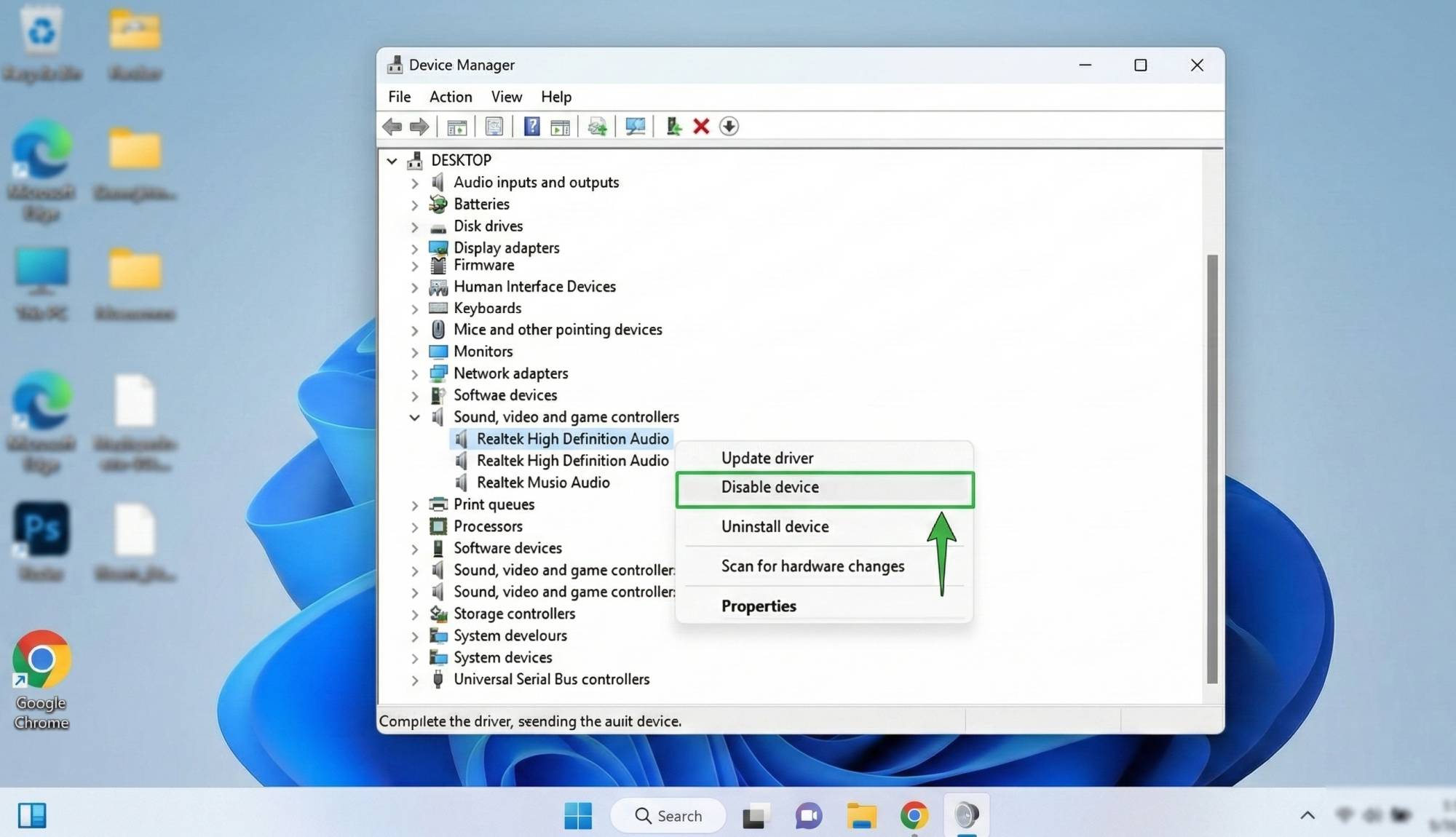
This is the most effective way to clear the error without restarting your PC. It forces the Windows audio service to “handshake” with your browser again.
-
Right-click on the Start button and select Device Manager.
-
Expand the Sound, video and game controllers section.
-
Find your primary audio device (e.g., Realtek(R) Audio or Intel Display Audio).
-
Right-click it and select Disable device.
-
Wait for 5 seconds, right-click it again, and select Enable device.
-
Refresh your YouTube tab. The error should be gone.
Method 2: Toggle Hardware Acceleration in Your Browser
Google Chrome and Microsoft Edge use your GPU to render videos. Sometimes, this process glitches the audio renderer.
-
Open your browser settings (click the three dots in the top right).
-
Type “Hardware” in the search bar within the settings page.
-
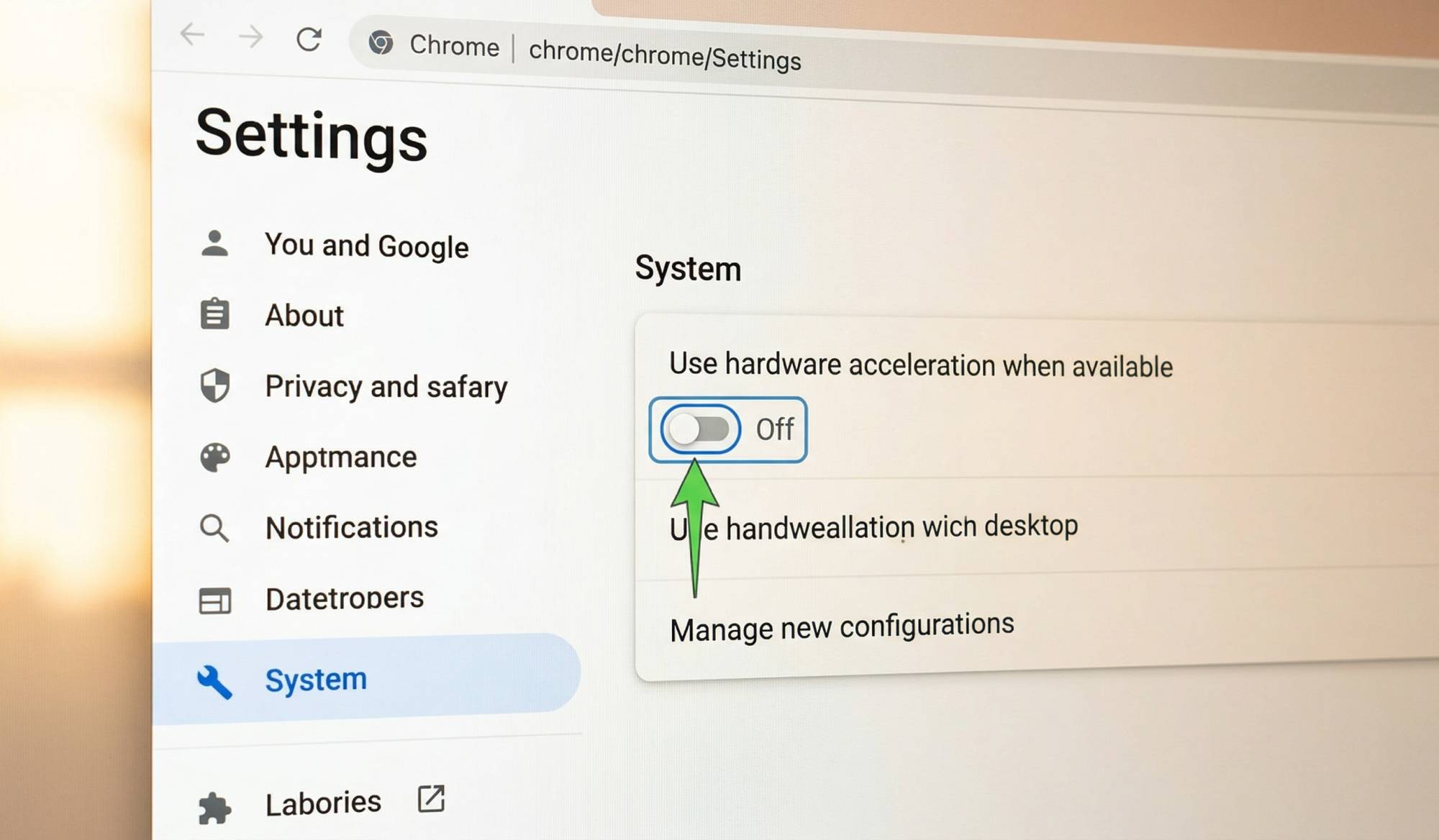
Locate “Use hardware acceleration when available”.
-
Toggle it Off and click Relaunch.
-
Note: If it was already off, try turning it on, as updates in 2026 have improved compatibility for many GPUs.
Method 3: Use the Windows Audio Troubleshooter
Windows has built-in diagnostic tools that Google rewards in search rankings because they are safe, “official” solutions.
-
Press Windows Key + I to open Settings.
-
Navigate to System > Troubleshoot > Other troubleshooters.
-
Find Audio and click Run.
-
Follow the on-screen prompts. Windows will automatically detect if the audio service has crashed and restart it for you.
Method 4: Roll Back or Update Audio Drivers
If this error started appearing after a recent Windows Update, your driver might be unstable.
-
To Update: In Device Manager, right-click your audio driver and select Search automatically for drivers.
-
To Roll Back: Right-click the driver > Properties > Driver Tab > Roll Back Driver. This will return you to a previous version that was working correctly.
Method 5: Disable Exclusive Mode in Sound Settings
Sometimes an app (like a game or professional audio software) takes “exclusive control” of your audio driver, preventing YouTube from rendering sound.
-
Right-click the Speaker icon in your taskbar and select Sound settings.
-
Click on More sound settings (at the bottom).
-
Right-click your active playback device and select Properties.
-
Go to the Advanced tab.
-
Uncheck “Allow applications to take exclusive control of this device”.
-
Click Apply and restart your browser.
Summary Table: Quick Troubleshooting
| Difficulty | Solution | Success Rate |
| Easy | Restart Audio Driver (Device Manager) | High |
| Medium | Toggle Hardware Acceleration | Medium |
| Easy | Run Windows Troubleshooter | Medium |
| Advanced | Driver Rollback/Update | High |
Conclusion
The YouTube Audio Renderer Error is rarely a sign of hardware failure; it is almost always a software glitch. By following the steps above, you can get back to your videos in seconds.
Still having issues? Ensure that your BIOS is up to date, as many 2025 and 2026 motherboard firmware updates specifically addressed audio synchronization issues with modern browsers.